


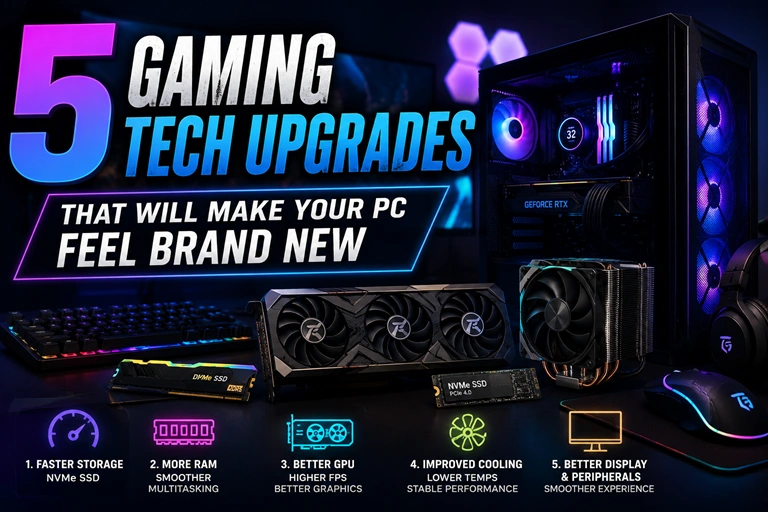
There is a point when a gaming PC starts feeling old even though it still runs your favorite games. Windows takes longer to load, games stutter when new areas appear, storage fills up, and that once-impressive setup suddenly feels sluggish. The good news? You probably don’t need an entirely new PC. The right 5 gaming tech upgrades that will make your PC feel brand new can dramatically improve everyday responsiveness, gaming performance, loading times, and even how enjoyable your setup feels.
Quick Summary
- Upgrade to an NVMe SSD for faster boot and game-loading times.
- Increase RAM if your system frequently runs out of memory or struggles with multitasking.
- Upgrade the GPU when gaming performance is the main limitation.
- Improve CPU cooling to maintain more consistent performance.
- Upgrade your monitor or peripherals to make the entire gaming experience feel more responsive.
- Before buying anything, identify the component currently limiting your PC.
1. Upgrade Your Storage to a Fast NVMe SSD
If your gaming PC still relies on an older SATA SSD—or, worse, a mechanical hard drive—storage is one of the easiest places to start.
Modern NVMe SSDs connect through the PCIe interface and can deliver substantially higher sequential bandwidth than traditional SATA drives. But the biggest difference you will notice isn’t necessarily a benchmark number. It is how quickly the computer responds.
Windows can boot faster. Large games can launch with less waiting. Installing updates becomes less painful, and moving large files doesn’t feel like a chore.
Why an SSD can make an old PC feel new
Imagine clicking on a game and waiting 45 seconds for the main menu to appear. After moving that game to a fast SSD, the wait may become dramatically shorter depending on the game and system configuration.
Open-world games can benefit in other ways too. Modern titles constantly stream textures, models, audio and other assets from storage. A faster drive can help the system keep up with that workload, although it won’t magically fix poor optimization or insufficient GPU performance.
The practical sweet spot for many gamers is a 1TB NVMe SSD. If you have a large game library, a 2TB model gives you considerably more breathing room.
Before buying one, check your motherboard. Older systems may not have an M.2 slot, while newer boards can support faster PCIe generations. There is little point paying a premium for an extremely fast drive if your motherboard cannot take advantage of its capabilities.
What should you move to the new SSD?
Start with the operating system and the games you play most often. Keep large archives, videos and less frequently used files on secondary storage if necessary.
This is one upgrade where you can feel the improvement even when your average FPS doesn’t change.
2. Add More RAM for Smoother Gaming and Multitasking
RAM is easy to overlook because it doesn’t directly determine your graphics quality or resolution. Yet insufficient memory can make a gaming PC feel surprisingly rough.
If you’re gaming while running Discord, a browser with several tabs, music software, recording tools or other applications, your system can quickly consume more memory than you expect.
For many gaming PCs, 16GB remains usable, but 32GB has become an increasingly comfortable target for modern gaming and multitasking. If your motherboard and processor support it, moving from 16GB to 32GB can be a worthwhile upgrade.
When do you actually need more RAM?
Don’t upgrade simply because someone says you need 32GB. Check your usage first.
Open Task Manager while playing one of your most demanding games. If memory usage is consistently close to your installed capacity and you experience stutters when switching applications, additional RAM could help.
There is another consideration: memory configuration.
Using two compatible modules in a dual-channel configuration can provide better memory bandwidth than running a single module, depending on the platform. Mixing random memory kits can also create compatibility or stability problems, so matching specifications is preferable.
For a modern gaming system, a sensible upgrade might be moving from 16GB to 32GB using a matched kit rather than simply adding one unrelated stick.
And if your PC already has 32GB and memory usage is nowhere near the limit, spend your money elsewhere. RAM isn’t a universal performance cure.
3. Upgrade Your GPU When FPS Is the Problem
If your goal is higher FPS, better graphics settings or smoother 1440p and 4K gaming, the graphics card is usually the upgrade that matters most.
The GPU handles the majority of the graphical workload: rendering frames, lighting, shadows, textures, effects and increasingly demanding features such as ray tracing.
If your processor and other components are reasonably modern but you’re constantly lowering graphical settings to maintain playable frame rates, the graphics card deserves serious attention.
How do you know your GPU is holding you back?
Monitoring tools can tell you a lot.
If your GPU is consistently operating near full utilization while your CPU has considerable headroom, the graphics card is likely the primary limitation in that particular game and resolution.
That doesn’t mean you should automatically purchase the most expensive GPU available.
Your monitor matters. A card capable of pushing extremely high frame rates at 1080p may be unnecessary if you’re using a 60Hz display. Conversely, moving to a 1440p high-refresh monitor can make a stronger GPU much more worthwhile.
Match the GPU to your gaming goals
Think about what you actually play.
Competitive games such as esports shooters often prioritize high frame rates and low latency. A different balance makes sense for visually demanding single-player games where 1440p or 4K resolution, high-quality textures and ray tracing are priorities.
Upscaling technologies and frame-generation features can also affect your buying decision. Supported games can use these technologies to increase perceived or rendered performance, but they aren’t a substitute for having sufficient underlying GPU power.
A good upgrade is therefore not simply “the fastest GPU you can afford.” It is the card that matches your resolution, refresh rate, games and power supply.
4. Improve Your CPU Cooling
Here’s an upgrade that doesn’t get enough attention: cooling.
Your processor can be perfectly capable on paper but perform less consistently when temperatures become excessive. Modern CPUs dynamically manage clock speeds based on temperature, power and workload. Better cooling can give the processor more thermal headroom and help maintain consistent performance.
This is especially relevant if your PC has been running for several years.
Dust accumulates. Thermal paste can deteriorate over time. Fans become noisy or less effective, and airflow paths can become restricted.
You may not need an expensive cooler
Before purchasing a premium liquid cooler, inspect your existing setup.
Clean dust from the filters, heatsink and fans. Make sure the case has sensible airflow. Check whether the CPU cooler is firmly mounted and whether its fan is operating correctly.
If the stock or entry-level cooler is struggling, moving to a capable tower air cooler can be a relatively inexpensive improvement.
A better cooling setup can also make your PC quieter. That’s a surprisingly big quality-of-life improvement when you’re sitting next to the machine for several hours.
For users who already have adequate temperatures, however, a cooler won’t suddenly produce a huge FPS increase. Cooling should be treated as a consistency, noise and thermal-management upgrade rather than a magic performance button.
5. Upgrade Your Monitor and Gaming Peripherals
This is the upgrade that changes how your PC feels rather than simply how fast it runs.
Suppose your computer already produces 100 FPS, but you’re still using an old 60Hz monitor. You’re not getting the full benefit of those frames.
Moving to a higher-refresh display can make mouse movement, camera motion and fast gameplay appear significantly smoother.
144Hz can be a major step up
For many PC gamers, a quality 144Hz or 165Hz monitor represents a noticeable improvement over 60Hz. Higher refresh rates can make competitive games feel more responsive, provided your hardware can produce enough frames.
OLED and Mini-LED displays can also improve contrast, HDR performance and image quality, although these technologies come with different pricing and trade-offs.
Don’t ignore resolution, either. A 1440p monitor can be an excellent middle ground between 1080p and 4K, offering a sharper image without demanding as much GPU performance as native 4K.
Peripherals matter too
A mechanical keyboard, responsive mouse and good gaming headset won’t increase your FPS, but they can improve the experience.
A gaming mouse with a comfortable shape and reliable sensor can make a bigger practical difference than buying an unnecessarily expensive CPU upgrade for a system that isn’t CPU-limited.
The same applies to keyboards. If you spend several hours gaming or typing, comfort and responsiveness matter.
Think of this as the final layer of a gaming PC upgrade. Once the core hardware is performing well, improving the devices you physically interact with can make the entire system feel newer.
Which Gaming Tech Upgrade Should You Buy First?
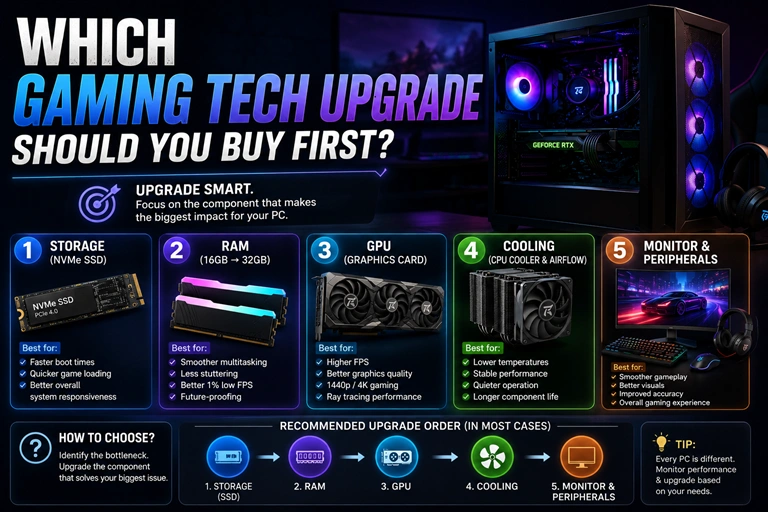
There isn’t one universal upgrade order. The best choice depends on what your PC is doing poorly.
If your computer takes forever to boot and games have long loading screens, start with an NVMe SSD.
If games run smoothly until you start multitasking and your memory usage is constantly near maximum, consider 32GB of RAM.
If your main complaint is low FPS at your target resolution, investigate the GPU before spending money elsewhere.
If the processor is running hot and the fans are constantly screaming, improve cooling and airflow.
And if your PC already performs well but gaming still doesn’t feel particularly smooth, a high-refresh monitor and better peripherals could be the upgrade you notice most.
The smartest approach is to measure before buying. Task Manager, Windows performance monitoring and in-game overlays can help identify whether your CPU, GPU, RAM, storage or temperatures are actually limiting the system.
Don’t Upgrade Everything at Once
One of the easiest ways to waste money on PC hardware is upgrading components simply because newer hardware exists.
A gaming PC doesn’t become obsolete the moment a new CPU or GPU generation launches. If your current system delivers the performance you want, keep using it.
Instead, identify the weakest link.
For example, imagine a PC with a capable processor, 32GB of RAM and an older GPU. Buying another 32GB of memory may accomplish almost nothing for gaming. Putting that money toward a graphics card would make much more sense.
Likewise, a PC with a powerful GPU but a nearly full hard drive can benefit enormously from modern storage.
This “bottleneck first” strategy is usually the most cost-effective way to refresh an aging gaming system.
A Practical Upgrade Path for an Aging Gaming PC
If you’re not sure where to begin, use this simple process:
Step 1: Check your storage.
If you’re still using a hard drive for Windows or frequently played games, move those workloads to an SSD.
Step 2: Check RAM usage.
If 16GB is regularly maxed out during gaming and multitasking, consider 32GB.
Step 3: Monitor GPU and CPU utilization.
This helps determine which component is actually limiting gaming performance.
Step 4: Check temperatures.
Clean the system and improve airflow before replacing hardware unnecessarily.
Step 5: Look at your display.
If your PC can consistently produce high frame rates but you’re using an old 60Hz monitor, a high-refresh display could transform the experience.
This approach also prevents a common mistake: buying an expensive component that doesn’t address the actual problem.
FAQ
What is the best first upgrade for an old gaming PC?
The best first upgrade depends on the bottleneck. An NVMe SSD is ideal for slow loading and system responsiveness, while a GPU is usually the better choice when low FPS is the primary problem. Check performance metrics before buying.
Does upgrading RAM increase FPS?
Upgrading RAM doesn’t always increase average FPS. It can help when your current memory capacity is insufficient, particularly during demanding games and multitasking. Moving from 16GB to 32GB can also improve overall system smoothness in some workloads.
Is an SSD worth upgrading for gaming?
Yes. An SSD can significantly reduce operating-system and game loading times compared with a mechanical hard drive. It won’t necessarily increase average FPS, but the overall PC experience can feel much faster and more responsive.
Should I upgrade my GPU or CPU first?
For most GPU-limited gaming systems, upgrading the GPU provides a larger improvement in graphical performance. If your CPU is consistently limiting frame rates or causing performance bottlenecks, however, a processor upgrade may be more appropriate. Monitoring both components first is the safest approach.
Conclusion
You don’t need to replace an entire gaming PC just because it no longer feels as fast as it once did. A carefully chosen SSD, RAM kit, GPU, cooling solution or monitor can breathe new life into an existing system.
The key is to upgrade based on evidence, not hype. Find the component holding your PC back, spend your budget there, and leave everything else alone until it actually needs attention. That’s how a relatively modest investment can make an aging gaming setup feel surprisingly close to new.